
Basic Searching
Searching by title or author
Type keywords from the title or author name into the search box at the top of the screen. Press Enter or click the blue Search button.

Performing an exact search
You don't need to be "exact" - the new website uses sophisticated algorithms to find the best match for your keywords. However, there are a few options to make your search more specific, such as changing the default keyword field to one of the other options such as Title, Author, Subject, Series, etc.
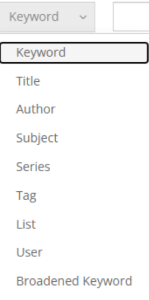
Smart Search
You may also enter keywords related to the format, language, audience, or materials new to the library. Simply type keywords such as “dvds”, “ebooks”, “French”, “teen”, or “new music”. Smart Search will apply the appropriate filters to your search results.

Narrowing your search
Too many results?
- Use the filters on the left side of the search results page to narrow your results (you can limit to only Book, or DVD, for example).
- Try an advanced search.
Too few results, or not what you were expecting?
- Check your spelling
- Try using different keywords
- Try an advanced search
- Send us your feedback through our contact form
- Try searching other resources:
At the top of the Search Results page, click on Search other resources:

Or, at the bottom of the Search Results page, click on Discover more services and resources:

If the library does not own the item you are looking for, there may be no exact match for your search. In these cases, the search engine looks for partial matches (records that contain one or more of the words).
If the library does not own the item you are looking for, you can also try:
- Suggest for Purchase
- Interlibrary Loan
The search engine is powered by BiblioCommons, and the Library continues to work with them in making adjustments as needed and where possible. We appreciate hearing from you about your experiences with searching, especially specific examples.
Advanced Searching
Advanced Search allows for more specific criteria in searching. There are many additional criteria available to select such as searching by ISBN, or searching by Call Number.
Searching by ISBN
On the Home Page, type the ISBN into the search box at the top of the screen. Press Enter, or click on the blue Search icon.

Or, you can use Advanced Search. Change Keyword Anywhere to Identifier (e.g. ISBN/UPC) and type the ISBN into the field. Press Enter or click the blue Search button to run the search.

Searching by call number
Using Basic Search, change the Keyword field to Broadened Keyword. Type the Call Number into the search bar and press Enter or click the blue Search icon.

Or you can use Advanced Search. Change Keyword Anywhere to Call Number and then type the call number into the field. Press Enter or click the blue Search button to run the search.

Searching for all materials of a certain type (e.g. all English adult DVDs)
Use Advanced Search. Leave the search box blank. Scroll down until you see the area of the page called Limit my search results by. Set the Language filter to “English”, and set the Audience filter to “Adult”
From the area called Format, select one or more formats, e.g., “DVD”. Click on the blue Search button to run the search.
